Digital Evidence Sharing Capability (DESC)
Guidance for Defence Agents about the Digital Evidence Sharing Capability (DESC)
About DESC
DESC provides an improved and simpler system to share digital evidence to defence agents via the Defence Agent Service (DAS), removing the need to collect and move physical copies of CDs, DVDs or encrypted pen drives.
DESC also provides the option to share important digital evidence prior to a plea being tendered where it may lead to an early resolution such as a plea, adjusted plea or discontinuation. DESC aims to help partners provide a better public service including a platform for further modernisation.
Access to DESC evidence
Defence agents access DESC evidence through the new Defence Agent Service (DAS).
DAS is a new digital platform for defence agents to securely access disclosure services and case information. It replaces the Secure Disclosure System and manual client disclosure. DAS consolidates all defence agent’s case material in one place, allowing them, or their approved delegates, access throughout the lifetime of a case.
DESC is browser based and will work on a range of operating systems and device types.
How to view digital evidence
You will receive a notification each time disclosure is shared. You can view the disclosure via hyperlinks in DAS.
Each of the DESC evidence files disclosed to you will be listed as production.
When you select a hyperlink for DESC evidence you will be redirected to the file

Evidence certification
There is a link to any related certificates at the right-hand sign of your screen. Click on the link below the 'evidence certifications' to show the certificate.
The certificate will appear at the right-hand side of the screen:
Select 'view certificate' for a full-page view.
Functionality
Use the video playback buttons to play, pause, access previous frames, rewind while in play mode, and skip forward frames by selecting the relevant button from the taskbar underneath the video player:
Change speed
To change speed footage plays at click on icon and select 'playback speed' from options.
Filters
Select the 'filters' icon to apply available filters.
Sound
Click on the 'sound' icon to increase/decrease or mute sounds.
Zoom
The 'zoom' function will display by clicking on the icon. Use the zoom tools displayed on the video to zoom in or out.
You can also rotate the mouse wheel to zoom and pan into a specific area in the video.
Full screen
Click on the icon to view the video full screen.
Use the esc key to exit fullscreen or alternatively click on the 'fullscreen' icon on the video.
Timeline
The timeline (to enable you to go to a specific time in the video) is underneath the video player.
Managing digital evidence
You can access disclosed files via login to DAS at any time during the lifetime of a case . You can also download files from DAS and save them on your own system.
The existing rules and protocols remain in relation to security of data and data protection.
Help and support to view disclosed DESC productions
If you need help, please contact us by email or by calling 0300 020 3330.
Evidence presentation in court
Facilities have been provided in court rooms to allow DESC productions to be presented during trials by Crown and Defence practitioners. There is a requirement to use your own device to present DESC productions.
Connection points have been installed in DESC-enabled courtrooms and these provide
-
A secure connection to the internet for streaming DESC productions. The secure network provided in courtrooms restricts access to DESC only, so reduces the risk of unrelated notifications, such as Teams messages or other website alerts appearing on screen during court proceedings and is the preferred option for presentation purposes. In addition, Wi-Fi connectivity can vary at certain times of the day and in some locations.
-
A HDMI cable to link to the EPS (Evidence Presentation Stack) for presenting evidence on the screens in the courtroom.
Wi-Fi
SCTS currently have a programme of work improving Wi-Fi coverage for defence agents within the court building.
There is Wi-Fi available in court which defence agents can connect to if they do not have access to a laptop with a network cable.
This provides a practical fallback option and should support defence agents to access the necessary systems when presenting in court.
Using the SCTS Business Wi-Fi network is secure and straightforward once set up. If you would like to use the service, please contact member.registration@lawscot.org.uk in advance. An SCTS business Wi-Fi username and password will then be sent to you within four working days. These log in details will last a year.
How to connect
SCTS has installed three identical sets of connection points positioned at the prosecutor's seat, the defence's seat, and at the lectern area in the well of the court.
Connecting to the network cable
-
Connect the ethernet cable (grey or blue) to the port on your device.
-
If your device has no ethernet port, you will require an adaptor.
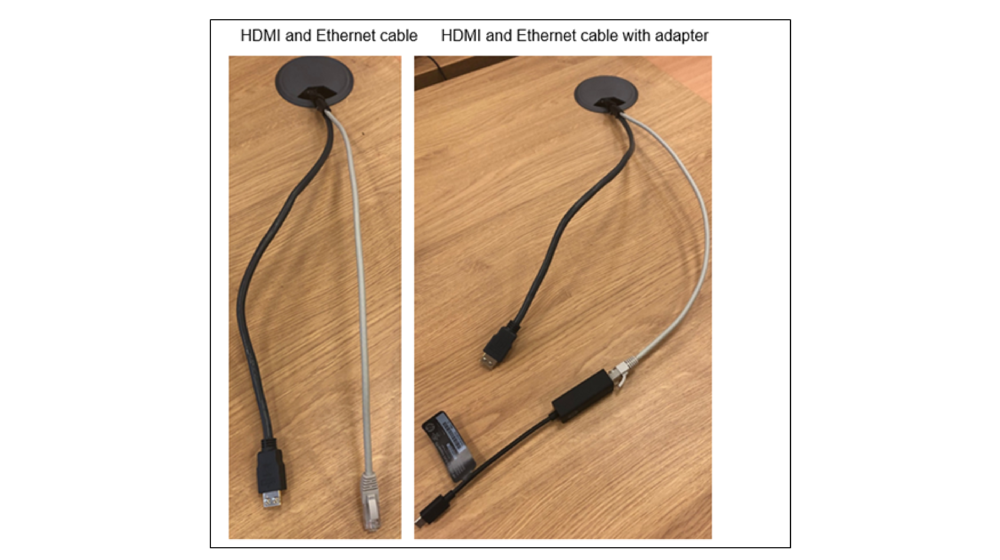
When you connect your device to the secure internet connection, check your device is disconnected from any other Wi-Fi connection you may be tethered to. (This is to ensure connection to the secure network is used to present DESC evidence).
Connecting to the Evidence Presentation Court Stack
-
When you are ready to present digital evidence, connect your device to the SCTS HDMI cable
-
The HDMI connection projects the last joined connection, so if another criminal justice partner connects after you, they can take over the screen to present.
-
Before you navigate away from DESC, remove the HDMI connection.
Troubleshooting guidance for DESC presentation is available within the court room from the Court Officer should technical issues arise.